Building services: worked example

An M and E contractor sending out a school refurbishment

A building services firm wins an electrical and mechanical package on a school refurbishment and has to get it to its subcontractors and merchants.

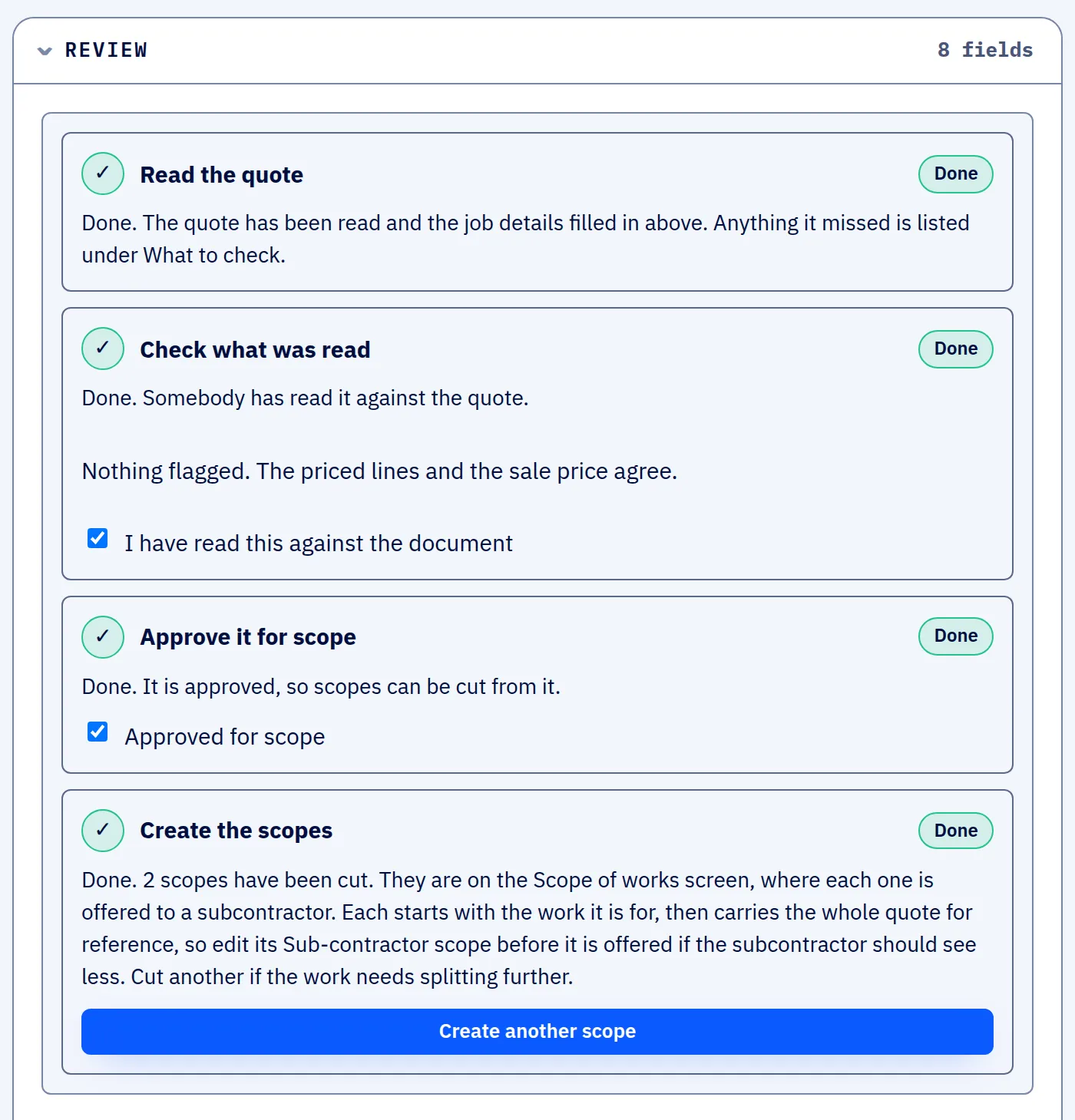
The Review section of a quote in SUBR with four steps marked Done: the quote read, the read checked against the document, approved for scope, and two scopes cut.
A quote that has been read, checked with the office's two ticks and approved, with two scopes cut from it. Screen from SUBR's demonstration workspace. All names are invented.

This is a worked example, not a customer story. SUBR is new, so we show how a firm like this would use it. Real case studies from our Founding Firms will replace these examples.

The firm

A building services contractor with an office of three: an owner, a contracts manager and an administrator. It runs its own electricians and sends out the specialist packages.

Before SUBR

The quote that won the job lists electrical, ventilation, fire alarm and data lines, each with the firm's price on it. It cannot go to the subcontractors as it is.

So the contracts manager copies each package's lines into a new document, deletes the figures, emails it out, then rings round the ventilation and fire alarm subcontractors to find out who will take it. Cable, containment and plant are priced by phone with two or three merchants.
With SUBR

Each step on a real SUBR screen. The screens come from the demonstration workspace and show one example job, a brickwork repair; a building services quote goes through exactly the same steps.

Quote read

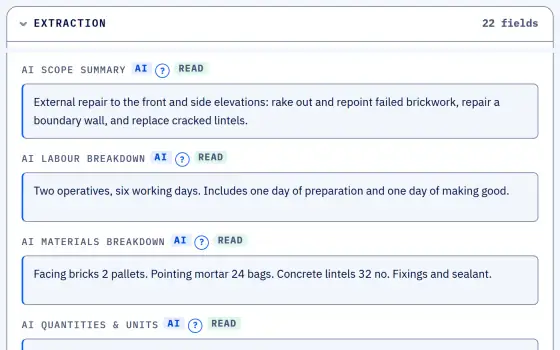
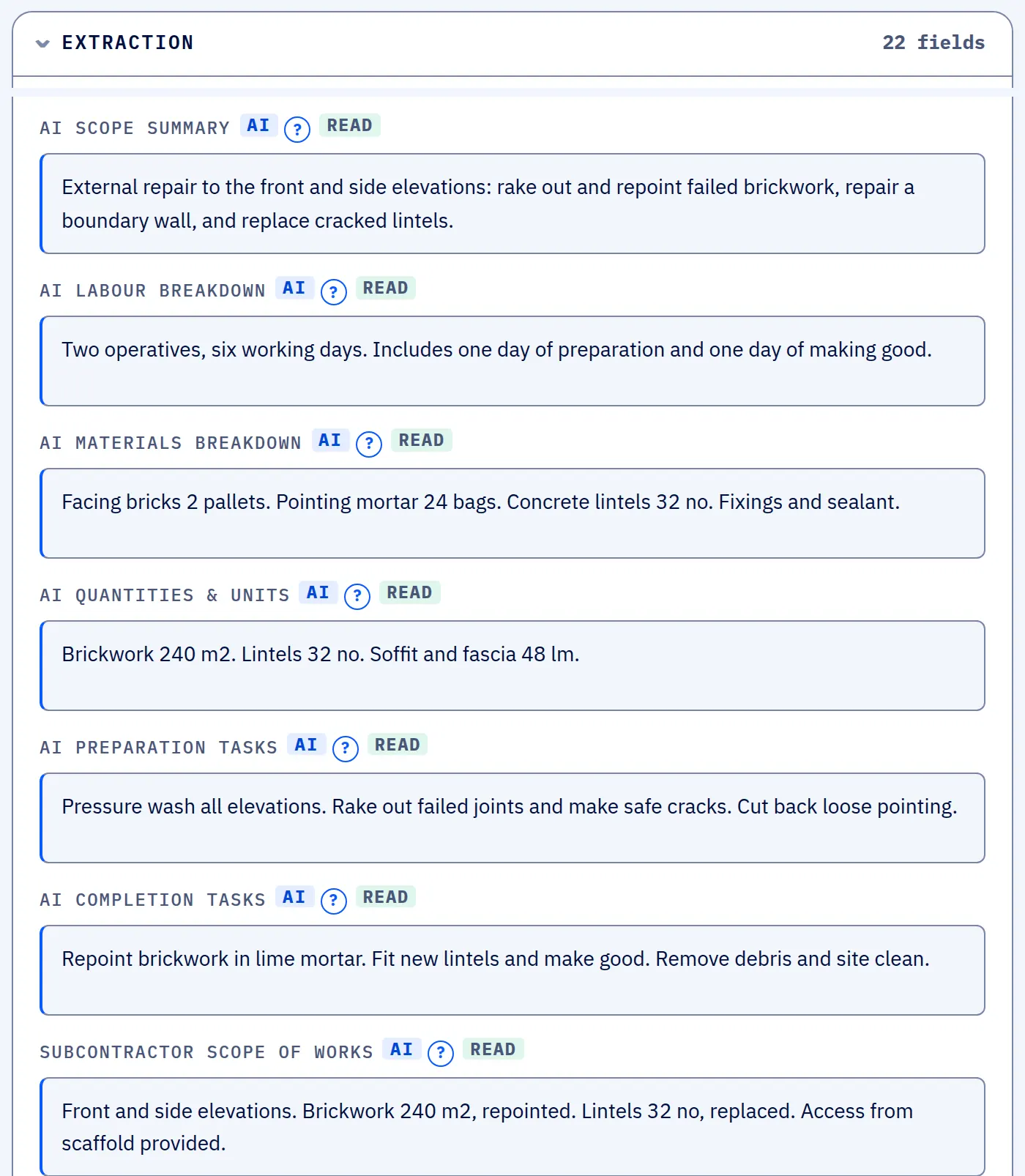
The administrator uploads the client quote PDF. AI reads the client, the school's address, the dates, the priced lines and the wording, and the contracts manager checks the read with two ticks before anything moves on.

The AI's read of a quote in SUBR: a scope summary, labour breakdown, materials breakdown, quantities, preparation and completion tasks, and the wording for the subcontractor.
What the AI read from the quote PDF: scope, labour, materials, quantities and the wording for the subcontractor. Screen from SUBR's demonstration workspace. All names are invented.

Scopes built

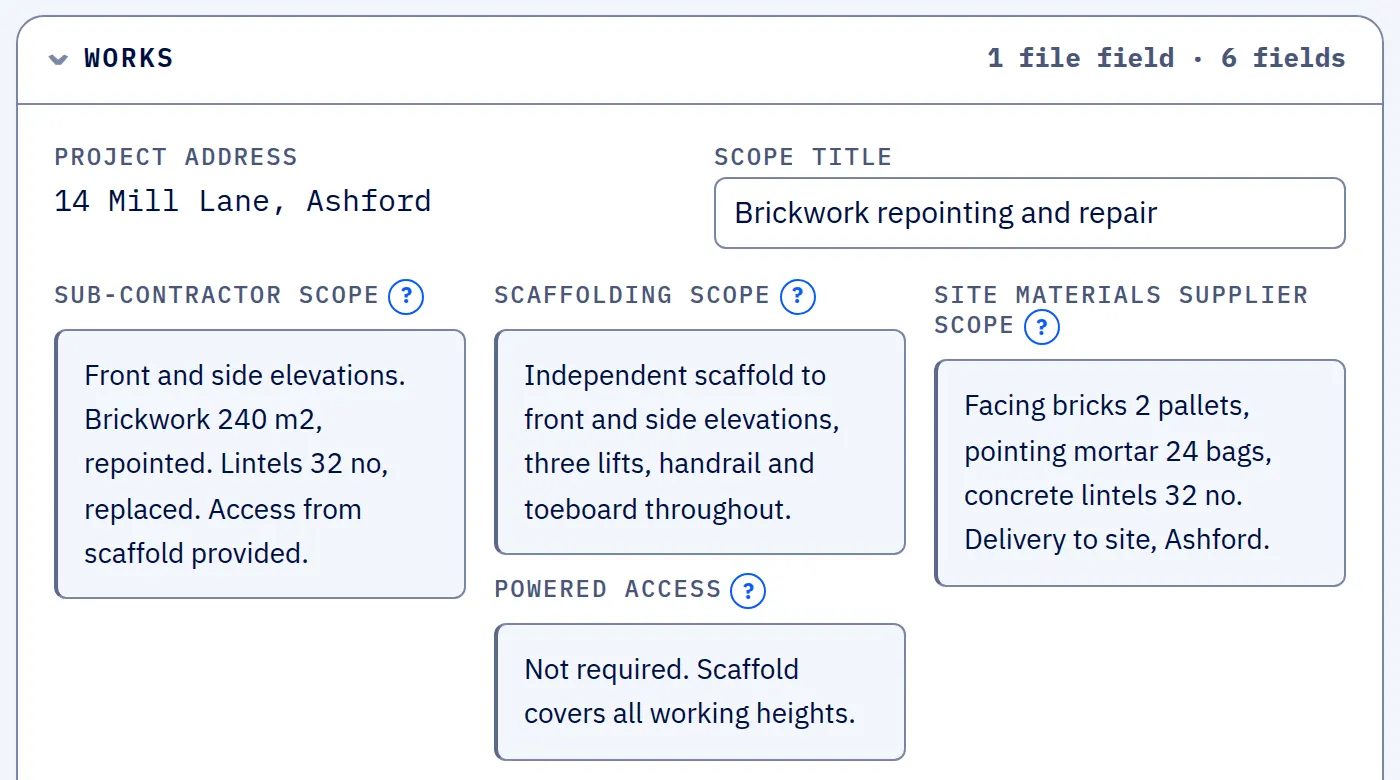
SUBR cuts one scope per package, ventilation, fire alarm and data, with no job costs, no margin and no client price on it. It builds a materials request for the merchants and a scope of works for the project manager.

The works section of a scope in SUBR with the sub-contractor scope, scaffolding scope, powered access and site materials supplier scope, and no costs, margin or client price.
One scope cut from the quote: the work, the scaffold and the materials wording a subcontractor needs. No job costs, margin or client price. Screen from SUBR's demonstration workspace. All names are invented.

Work offered

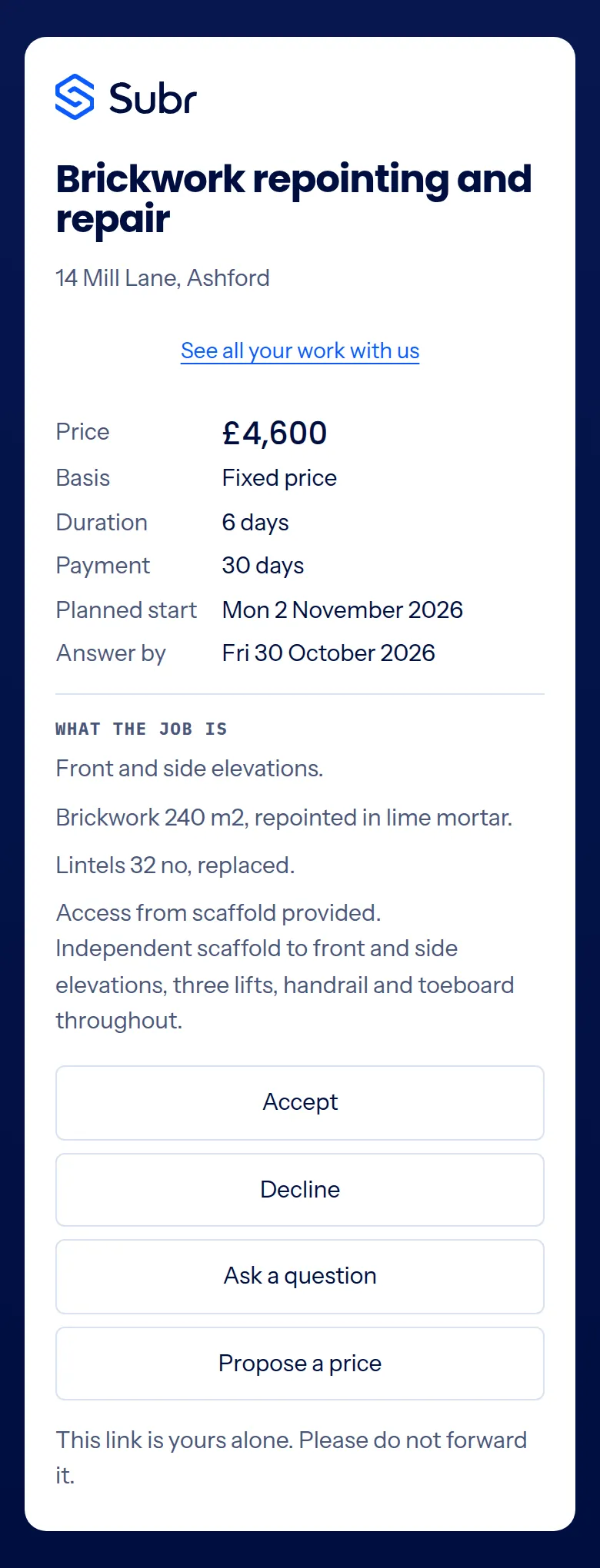
The office sends each subcontractor their own link by email, text or WhatsApp, the way it messages them now. Each one sees its trade, the address, the wording, an answer-by date and its own price, and answers on the phone with no account.

A subcontractor's offer on a phone: price, basis, duration, payment and start date, what the job is, and four buttons to accept, decline, ask a question or propose a price.
The same offer on the subcontractor's phone: accept, decline, ask a question or propose a price. No account. Screen from SUBR, shown with invented example details. All names are invented.
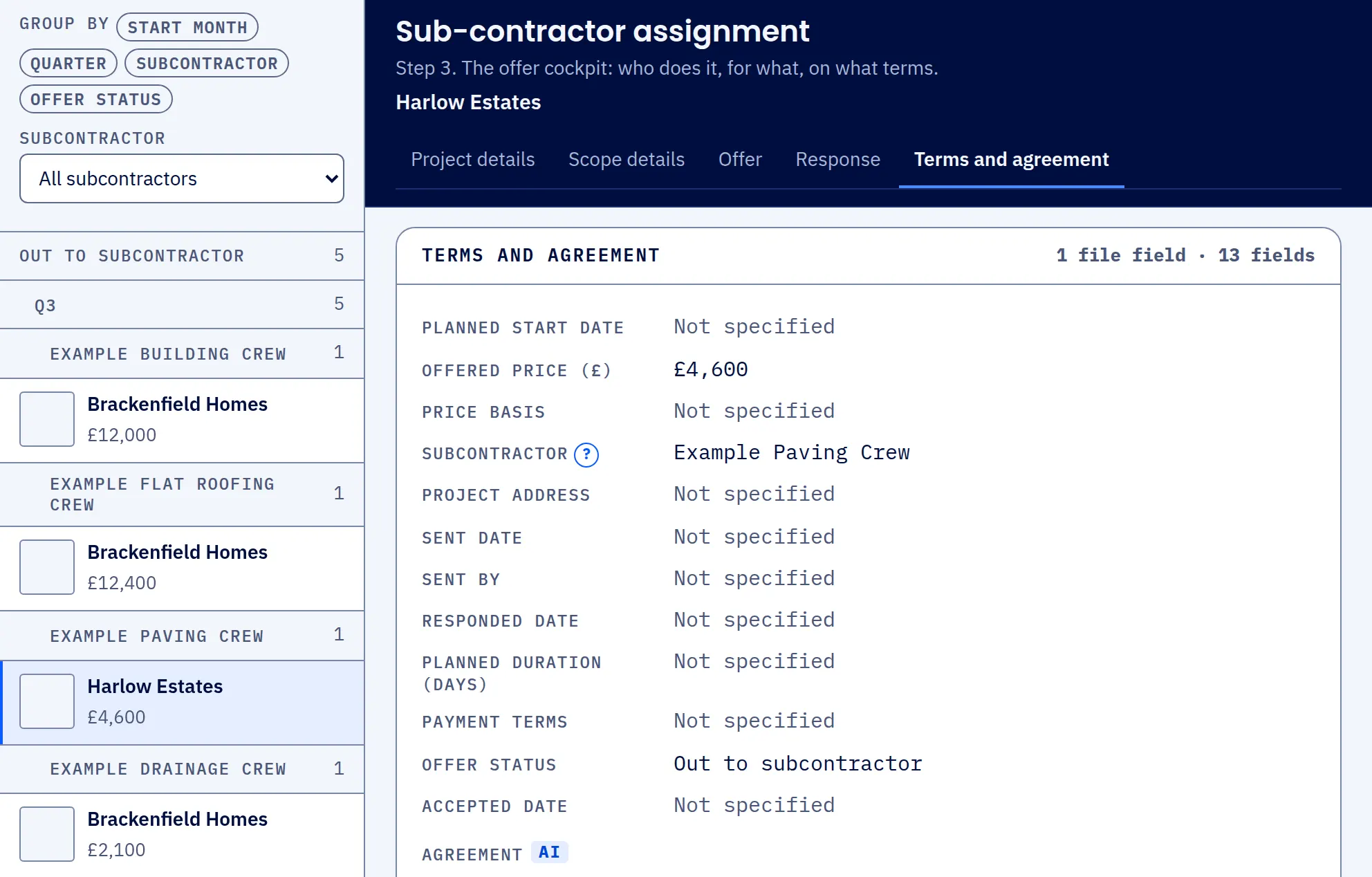
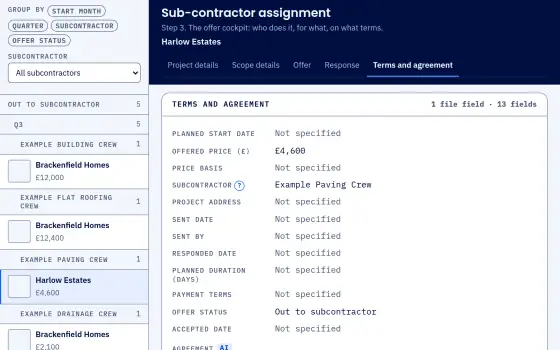
The offers screen in SUBR with offers out to subcontractors listed by crew, and one offer open showing its price, its subcontractor and its status.
Offers out to subcontractors, listed by crew, with the price offered and the answer still awaited. Swipe sideways to see the whole screen. Screen from SUBR's demonstration workspace. All names are invented.

Pre-start

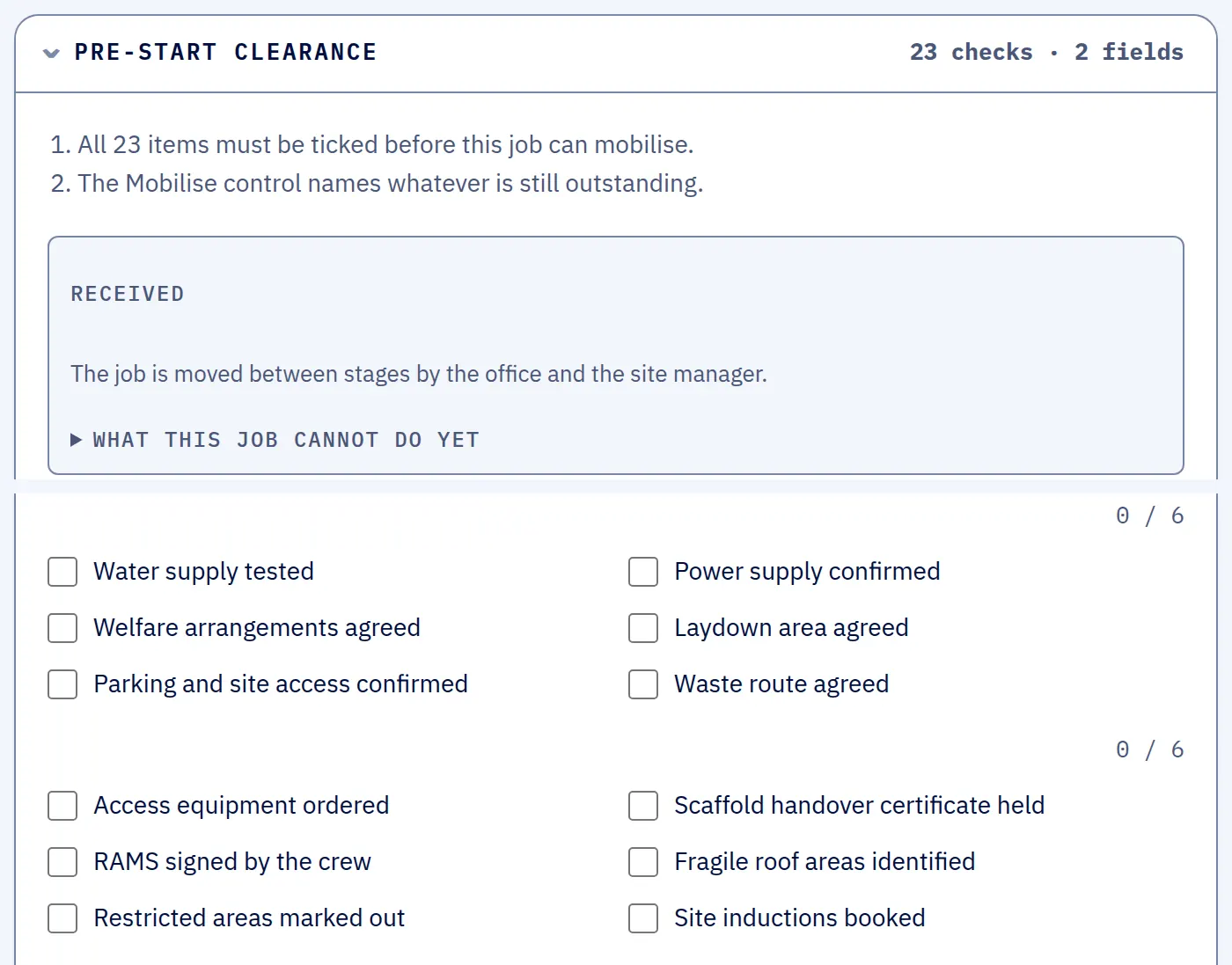
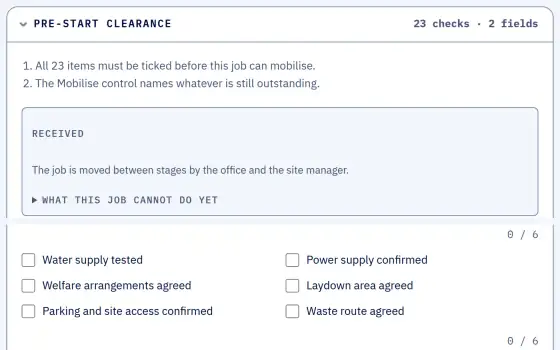
When the fire alarm subcontractor accepts, one job opens and the other offers on that scope close. The job cannot be marked mobilised until the 23-item pre-start check is ticked, from RAMS signed by the crew to the subcontractor's compliance in date.

The pre-start clearance on a job in SUBR, with the 23 items to tick before it can mobilise and none of them ticked yet. The first two groups are shown.
The pre-start check on a job that has just been received: 23 items to tick, none done yet, so it cannot be mobilised. The first two groups are shown. Screen from SUBR's demonstration workspace. All names are invented.

On site

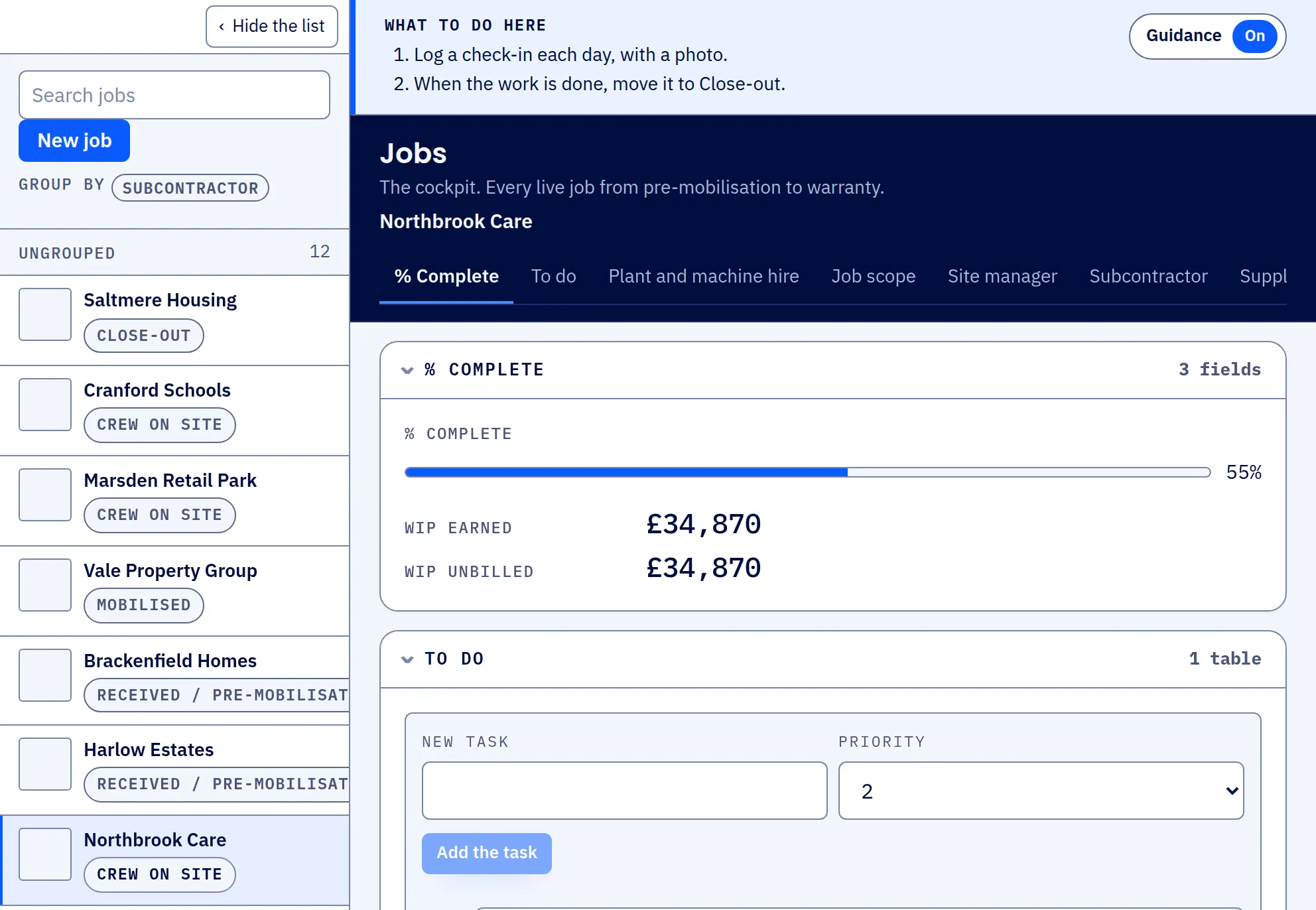
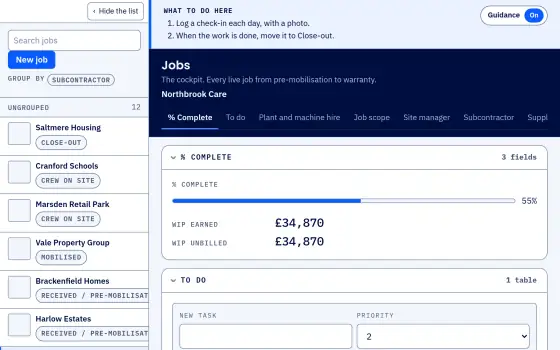
The site manager logs each day, and every job from the school quote sits on one project through to close-out.

The jobs board in SUBR with every job and its stage listed on the left, and a job with crew on site open on the right showing its progress and its to-do list.
The jobs board: every job and its stage, with a job on site open to show its progress and to-do list. Each day is logged on the job as a check-in. Swipe sideways to see the whole screen. Screen from SUBR's demonstration workspace. All names are invented.

Who sees what

The owner and administrator see the money. The site manager runs the pre-start check and the daily log and never sees the quote or a price. SUBR sends nothing itself: the office sends every link.

Book a demo

See it on a quote

A short call. We walk a dummy quote from PDF to jobs on site.